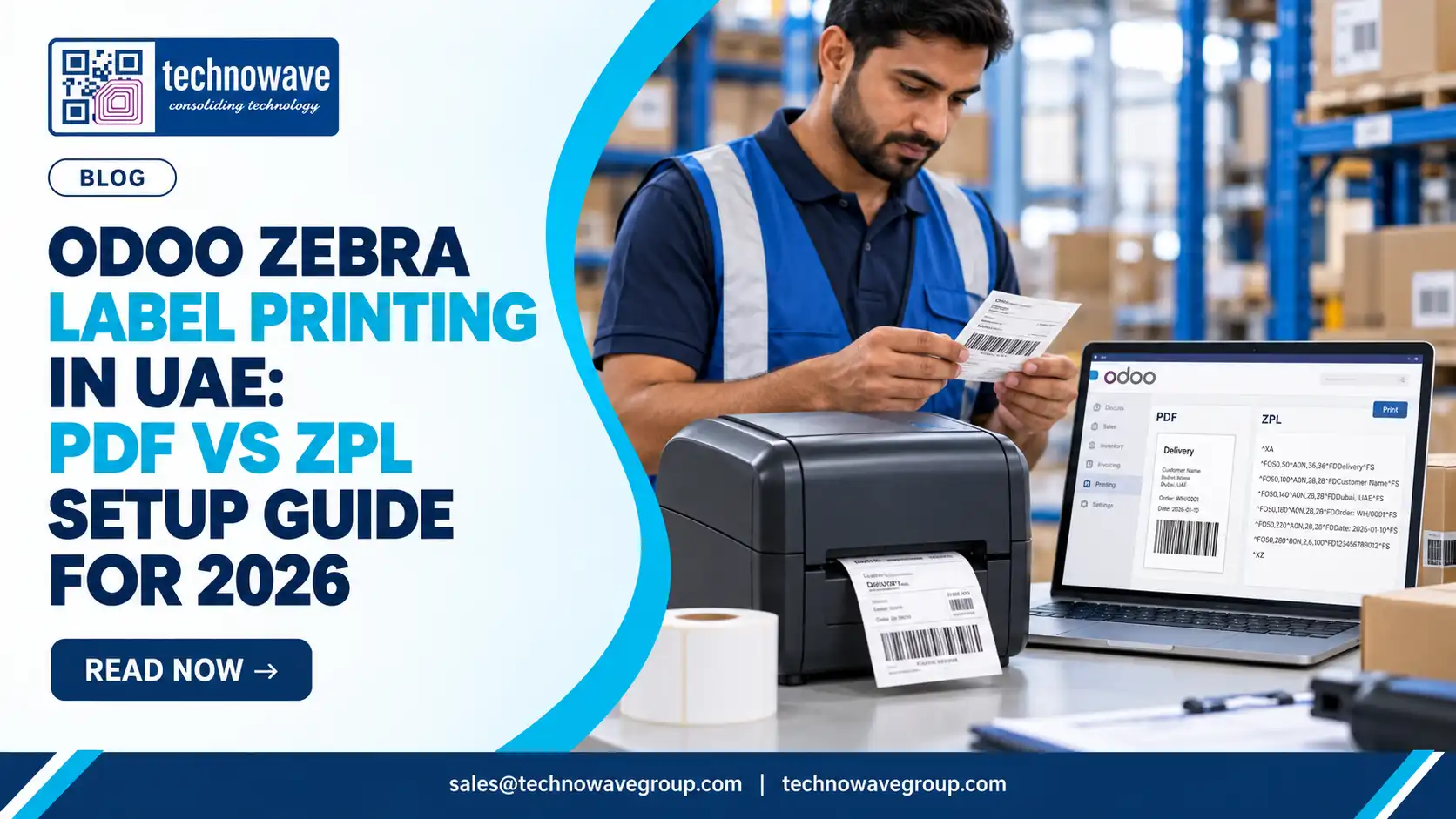
For most UAE businesses, the best Odoo Zebra label printer integration UAE setup is simple: use PDF when users need easy template editing and office-friendly workflows, and use ZPL when operations need faster, more consistent barcode and shipping label output directly from Zebra printers. The right choice depends on label volume, barcode density, printer model, Arabic text requirements, and how much print variation your team can tolerate across browsers, drivers, and sites.
In this guide, you will learn how to choose the correct method, configure the printer layer properly, and avoid the failures that usually appear only after go-live: wrong label size, barcode clipping, DPI mismatch, slow reprints, and unreadable Arabic or QR codes. That matters in UAE retail stores, warehouses, clinics, and asset-tracking environments where staff need predictable labels every shift, not just a design that looks correct on screen.
1. Define the workflow before you choose PDF or ZPL
What is Odoo Zebra label printing? It is the process of generating a label in Odoo and sending it to a Zebra thermal printer either as a rendered document such as PDF or as native printer commands such as ZPL. The method affects print speed, alignment stability, barcode quality, and how much dependence you have on local PCs, browser settings, and printer drivers.
Start by mapping the exact use case instead of asking a generic “Which prints better?” question. In UAE projects, the practical split is usually clear: retail shelf and internal product labels may tolerate PDF if layouts are simple and centrally controlled, while warehouse carton, asset, shipping, and location labels typically need ZPL for more reliable output under production conditions.
Use these first-step checks:
- List each label type: SKU labels, price labels, rack labels, asset tags, GS1 shipping labels, sample labels, or return labels.
- Define the print point: back office, receiving bay, packing station, mobile cart, or branch counter.
- Record operational constraints: Arabic plus English text, reprint frequency, scan distance, and whether labels print on demand or in batches.
- Confirm media and printer family: desktop, industrial, or mobile Zebra units.
Common mistake to avoid: selecting PDF because users like visual previews, then discovering that a 100 x 150 mm courier label scales differently across workstations. If your process lives inside thermal label printing workflows or high-volume barcode printer labels, define the physical label and scan requirement first, then choose the output method.
2. Build the Odoo-to-Zebra architecture the right way
Odoo does not “integrate with a printer” in one single universal way. In practice, Odoo generates the label content and the output layer delivers it through a browser print flow, operating-system spooler, print server, or direct printer-language path. For UAE multi-site operations, the stable design is usually Odoo template logic on the application side and Zebra media, DPI, darkness, and command handling on the device side.
Step two is to decide the connection pattern:
- USB to local workstation for low-volume single-user counters.
- Ethernet or Wi-Fi for shared warehouse and branch printers.
- Print server or middleware where direct browser printing is restricted or branch governance is tight.
- Mobile printing for route, delivery, or stockroom workflows using devices such as the Zebra mobile printer range.
Then align four technical variables before testing the first label: printer resolution, label width and height, barcode symbology, and thermal media settings. A 203 dpi template printed on a 300 dpi Zebra without adjustment often creates subtle spacing issues, especially on tight Code 128 data, dense QR codes, or small-font asset labels.
Practical tip: assign fixed IP addresses for networked Zebra printers in warehouses and shared retail back offices. It reduces reconfiguration when PCs change and makes support easier when Odoo users, IT staff, and field technicians need to isolate whether the issue sits in Odoo, the workstation, or the printer. If your labeling sits inside broader stock movement processes, align it with your warehouse and automation environment rather than treating printing as a separate desktop task.
3. Compare PDF vs ZPL based on reliability, speed, and label control
Should you print Zebra labels from Odoo using PDF or ZPL for the most reliable UAE setup? For most production labeling, ZPL is more reliable because Zebra printers interpret native commands directly. For user-friendly preview and easier layout design, PDF is more convenient, but it introduces more dependencies on browser rendering, printer drivers, and page scaling.
| Factor | PDF from Odoo | ZPL from Odoo |
|---|---|---|
| Layout design | Easier for business users to preview and adjust visually | More technical to build and test |
| Print consistency | Can vary by browser, OS, driver, and scaling settings | Usually more consistent on Zebra thermal printers |
| Speed | Slower on batch jobs and large shipping runs | Faster for repetitive warehouse and barcode labels |
| Barcode quality | Depends on render path and PDF handling | Typically stronger for thermal barcode output |
| Arabic and mixed formatting | Often easier to visually validate before print | Needs careful font and template testing |
| Best fit | Office, low-volume, approval-based labels | Warehouse, logistics, asset, and high-volume operations |
The trade-off is not theoretical. In UAE operations, warehouses often need immediate reprints at receiving, put-away, picking, and dispatch points. There, ZPL reduces formatting uncertainty and generally produces cleaner barcodes on Zebra hardware. By contrast, branch users creating occasional shelf-edge or internal identification labels may prefer the familiar PDF path if volumes are modest and templates do not change often.
Common mistake to avoid: assuming one method is always superior. PDF is not wrong, and ZPL is not automatically perfect. The better question is this: where can you tolerate variation? If the answer is “nowhere,” choose ZPL first and test Arabic text, QR density, and media calibration early.
4. Configure printers, labels, and barcodes so the first print is usable
Step four is where many Odoo Zebra printer setup UAE projects fail. The software can be correct while the printer still outputs unusable labels because the physical media profile is wrong. Label width, gap sensing, darkness, print speed, ribbon type, and direct-thermal versus thermal-transfer settings must all match the media actually loaded.
Use this setup order:
- Select the Zebra model by duty cycle: desktop for counters and moderate branch use, industrial for warehouse shifts, mobile for on-cart or on-route labels.
- Load the right media: paper, synthetic, asset polyester, jewellery, or shipping stock. If needed, review Zebra printer label selection before template design.
- Calibrate sensor and media type: gap, black mark, direct thermal, or ribbon-based thermal transfer.
- Match DPI and template dimensions: 203 dpi and 300 dpi are not interchangeable without layout review.
- Choose correct barcode standards: Code 128, Code 39, QR, Data Matrix, or GS1 structures based on business process.
Which Zebra printers support Odoo label printing in UAE? In practice, most current Zebra desktop, industrial, and mobile printers can be used if the output method and driver or ZPL path are configured correctly. The deciding factor is not “Odoo compatibility” alone; it is whether the printer’s print width, duty cycle, connectivity, and media support match the workflow. That is especially important for asset tagging or RFID-adjacent environments using specialized models such as an RFID label printer.
Practical tip: for multilingual labels, test English and Arabic on the actual media with actual scanner hardware, not just on-screen PDF previews. Arabic text, narrow labels, and 2D codes can compete for space quickly, so font choice and field positioning need real printer output verification. According to Zebra Technologies Annual Reports, Zebra reported approximately US$4.98 billion in net sales in 2023, which reflects how deeply enterprise labeling depends on standardized, production-grade print infrastructure rather than ad hoc office printing.
5. Test by use case, then lock support and governance for UAE operations
The final step is controlled testing by workflow, not by sample page alone. Can Odoo be integrated with Zebra barcode printers for retail and inventory operations? Yes, but go-live quality depends on testing the actual event that triggers each label: goods receipt, inventory adjustment, picking, packing, returns, item relabeling, or asset issuance. A label that prints correctly from one menu may still fail when triggered from a different transaction with longer data or a different barcode field.
Use a short acceptance script for each site:
- Print five consecutive labels from the same transaction and verify alignment does not drift.
- Scan with the production scanner at the expected distance and angle.
- Force a reprint after a user correction and confirm the latest record data is used.
- Test exception data: long item names, Arabic text, special characters, and large quantities.
- Verify fallback: what happens if the network printer is offline or the workstation spooler stops.
This is also where support planning matters. A UAE business with multiple outlets or warehouse zones should document who owns Odoo templates, who owns printer firmware and calibration, and who handles first-line fault isolation. If your labels are tied to stock control, coordinate that governance with your asset tagging and identification processes and your broader inventory tracking environment so relabeling does not break downstream scans.
Common mistake to avoid: handing everything to the ERP team. Odoo template logic and Zebra hardware behavior are different disciplines. For UAE businesses that want a single local implementation path, Technowave International can support the Zebra hardware, media, installation, AMC, and printer-side troubleshooting, working alongside Odoo implementation partners such as Codex IT Solutions so the ERP and device layers are aligned from day one.
FAQ
Q: What is the difference between PDF and ZPL label printing in Odoo?
A: PDF printing renders the label as a document before it reaches the printer, which is easier for visual preview but more affected by drivers, browsers, and scaling. ZPL sends Zebra-native commands directly to the printer, which is usually faster and more consistent for barcode, warehouse, and shipping labels.
Q: Which Zebra printers support Odoo label printing in UAE?
A: Most Zebra desktop, industrial, and mobile label printers can work with Odoo if the media size, DPI, connectivity, and output method are configured correctly. The right model depends more on duty cycle, label width, and workflow location than on a single “Odoo-ready” product claim.
Q: Is ZPL better than PDF for warehouse and shipping labels?
A: In most cases, yes. ZPL is generally better for warehouse, dispatch, carton, and shipping labels because it improves print consistency and reduces dependency on local PDF rendering. PDF can still work well for low-volume or office-managed labels where preview matters more than speed.
Q: Can Odoo print multilingual English and Arabic labels on Zebra printers?
A: Yes, but multilingual printing should be tested on the actual printer, label stock, and font setup before rollout. Arabic text can affect spacing on narrow labels, especially when combined with barcodes or QR codes, so template field sizing and printer output must be validated physically.
Q: Do we need middleware or a print server for Odoo Zebra printer setup UAE?
A: Not always. Some deployments work through local browser or OS print paths, while others need a print server or middleware for shared printing, tighter control, or branch environments. The choice depends on how many users, printers, and sites you need to support and how much central governance is required.
Q: Who provides local Odoo Zebra printer integration and support in UAE?
A: UAE businesses typically need both ERP-side and hardware-side expertise. Technowave International supports Zebra printers, labels, installation, and after-sales service locally, and can work alongside Odoo partners so the label design, device setup, maintenance, and operational support remain aligned after go-live.
Summary checklist: define each label workflow, choose PDF or ZPL per use case, match printer DPI and media to template size, test English and Arabic output on real labels, validate scanability at the point of use, and assign clear ownership for template changes and printer support. If you want one UAE team to handle the Zebra hardware layer while coordinating with your Odoo implementation partner, Technowave International is well positioned to support the rollout end to end.
Related Articles
- Complete Guide to Digital Shelf Label in UAE in 2026
- Why UAE Hotels Still Using Paper Buffet Labels Are Falling Behind in 2026
- How to Upgrade EAS to RFID Anti-Theft Systems in UAE Retail (2026 Guide)
- On-Premise vs. Cloud-Based Warehouse Management System: 2026 Migration & TCO Guide
- Smart Buildings: Integrating People Counters with HVAC for Energy Savings in the GCC
- Buy IT Asset Management Software: Enterprise Pricing, Licenses, and Integration Guide
Odoo Zebra Label Printer Integration UAE Guide
Compare PDF vs ZPL for Odoo Zebra label printer integration UAE, with setup steps, printer requirements, and support guidance.